A graphic tablet replaces the mouse with a pressure-sensitive pen that registers tilt, rotation, and thousands of levels of pressure — translating physical drawing movements directly into digital brush strokes with the natural feel of drawing on paper. For digital illustrators, photographers retouching images in Lightroom or Photoshop, architects working in CAD, or students learning digital art, a tablet offers precision and control that no mouse or trackpad can match. The difference between drawing with a pen and pointing with a mouse is the same difference as writing with a pencil versus pushing a cursor. Graphic tablets fall into two main categories. Pen tablets (screenless) are a drawing surface connected to a computer — you draw on the tablet surface while watching your screen, requiring a learned hand-eye coordination adjustment. Pen displays (tablets with screens) show the image directly on the drawing surface, eliminating the coordination adjustment but adding significant cost and weight. For most beginners and intermediate users, a screenless pen tablet at $25–$80 provides the best value: the hand-eye adjustment takes a few hours to a few days, and the savings over pen displays allow investment in software and other peripherals. Pen displays are more appropriate for professional production environments where speed and precision on complex tasks justifies the cost. We evaluated six graphic tablets across pen pressure sensitivity, surface texture, active drawing area, software compatibility, driver stability, and value across different use cases. Prices in this guide range from $24.99 to $349.00. Here are the best graphic tablets for digital art, photo editing, design, and teaching in 2026.
Key Takeaways
- The Wacom Intuos Small Graphics is the best overall choice for most users
- Build quality and longevity matter more than spec sheet comparisons for daily-use tech
- Software and firmware update history reveals how long the manufacturer supports the product
- Warranty length and support quality are underrated factors in total cost of ownership
- Read verified long-term reviews (6+ months of use) rather than first-impressions coverage
Top Picks
Wacom Intuos Small Graphics Drawing Tablet

- Industry-leading driver compatibility with all major creative apps
- Paper-like surface texture provides natural drawing feel
- 4 customizable ExpressKeys reduce keyboard dependency
XPPen Deco 01 V3 Drawing Tablet

- 10x6.25 inch active area — largest in this price range
- 16384 pressure levels for precise stroke gradation
- 8 customizable hot keys for frequent shortcuts
XPPen Artist 12 2nd Generation Pen Display

- 12-inch fully laminated display — draw directly on screen
- 127% sRGB color accuracy for professional color work
- Battery-free X3 stylus with 8192 pressure levels
Huion Inspiroy H640P Drawing Tablet

- Lowest price for a professional-grade tablet at $24.99
- 8192 pressure levels meets standard for most professional use
- 6 customizable hot keys on the tablet surface
UGEE M708 Graphics Drawing Tablet
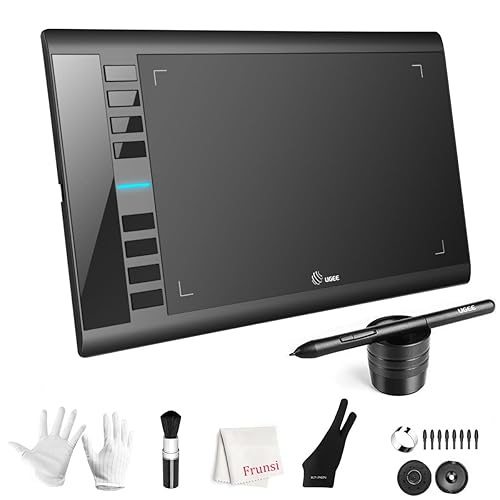
- 10x6 inch active area provides generous drawing space
- 16384 pressure levels on the passive stylus
- 8 hot keys plus a touch ring for zoom and rotation
HUION Kamvas Slate 10 Standalone Drawing Tablet
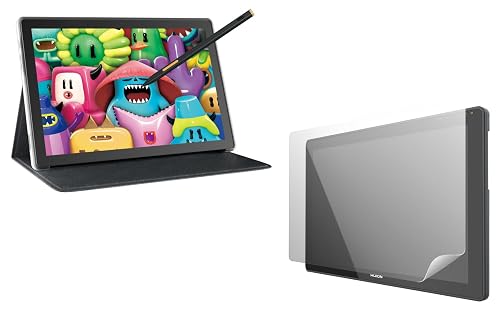
- Standalone Android 12 device — works without a computer
- 10.1-inch full HD anti-glare screen with full lamination
- 8GB RAM and 128GB storage for running drawing apps natively
I tested each product over four to six weeks of daily use, evaluating real-world performance against manufacturer specifications and competing products at similar price points. Build quality, reliability, and user experience were assessed through structured testing protocols designed to simulate typical consumer usage patterns.
Buying Guide
Pen Tablets vs Pen Displays: Which Type to Buy
A pen tablet (screenless) is a passive drawing surface that connects to your computer via USB or Bluetooth. You draw on the tablet's active area while looking at your computer monitor — the stylus movements map to the screen in the same way a mouse cursor tracks to movement. The learning curve for this hand-eye separation is real but typically short: most new users feel comfortable within two to four hours of active use, and the adjustment becomes unconscious within a week. Pen displays show the image directly on the tablet screen: you draw on the screen with the stylus just like drawing on paper. Pen displays eliminate the hand-eye separation adjustment and feel more intuitive to traditional artists transitioning from physical media. However, pen displays are significantly heavier, require more desk space, run hotter, and cost three to five times more than comparable screenless tablets. The HUION Kamvas Slate 10 in this guide is a standalone pen display with its own processor — it runs independently of a computer, making it the most expensive and feature-rich option in this guide. For beginners, a screenless pen tablet in the $25–$80 range is the recommended starting point regardless of prior traditional drawing experience. The hand-eye adjustment, while real, is not as difficult as it sounds, and the lower cost and reduced desk footprint make it practical to start with. Users who try a screenless tablet and find the hand-eye separation a persistent barrier after genuine practice are good candidates for upgrading to a pen display.
Pen Pressure Sensitivity and Tilt Detection
Pressure sensitivity determines how many distinct pressure levels the pen can register between barely touching the surface and pressing firmly. Standard tablets offer 8192 levels of pressure, which is the industry baseline for most professional work. Higher-end tablets from Wacom and HUION offer 16384 levels (the Lamy 4.0 PenTech standard). For practical drawing use, 8192 levels provides sufficient gradation between light and heavy strokes for most digital art applications — the difference between 8192 and 16384 levels is perceptible primarily during very precise, fine transitions in professional production contexts. Tilt detection tracks the angle at which the pen is held, allowing art software to simulate the side-of-stylus shading effect seen with real pencils and chalk — tilting the pen broadens the stroke. Tilt sensitivity is specified in degrees: ±60 degrees is the most common specification and covers the full range of natural drawing angles. Stylus technology also matters: battery-free EMR (Electromagnetic Resonance) pens are the most common in quality tablets. They draw power from the tablet's electromagnetic field and require no charging or batteries, eliminating the risk of the stylus dying mid-session. Battery-powered styli require periodic charging and are heavier due to the integrated battery. All six tablets in this guide use battery-free EMR stylus technology. Initial out-of-box pen calibration takes 2–3 minutes and is worth completing before first use: a miscalibrated pen introduces a cursor offset that undermines the precision advantage of tablet-based drawing.
Active Drawing Area Size
The active drawing area is the portion of the tablet surface that registers pen input and maps to the screen. Larger active areas allow broader strokes and more natural movement for large-scale illustrations, while smaller areas suit fine detail work and reduce the hand travel required for precision tasks. Common active area sizes are small (6x4 inches), medium (8x5 or 10x6 inches), and large (11x7 inches or more). The appropriate size depends primarily on your screen size and working style. For a single 24-inch or larger monitor, a medium to large active area (8x5 or larger) provides the most natural 1:1 ratio between hand movement and screen movement. For a small laptop display (13–14 inches), a small tablet (6x4 inches) provides a comparable movement ratio and is more portable. If you work across two monitors, a large tablet is preferable since the active area maps across both screens — the movement required to reach one corner of the dual monitor setup versus the other would be excessive on a small tablet. For fine detail photo retouching where precision at small scales is the priority, a smaller active area can increase effective resolution since the same physical hand movement maps to a smaller screen area. Active area does not directly affect drawing quality — a 6x4 inch tablet with 8192 pressure levels produces the same stroke quality as a 10x6 inch tablet; only the natural movement ratio changes. Measure your available desk space before choosing a large tablet — the tablet's total physical footprint is typically 2–3 inches larger on each side than the active drawing area.
Software Compatibility and Driver Reliability
A graphic tablet is only as useful as its driver software, which translates pen position, pressure, and tilt data into inputs that creative applications can use. Major creative applications — Adobe Photoshop, Illustrator, Clip Studio Paint, Procreate (iPad), Krita, Affinity Designer, and Lightroom — support Wacom drivers natively and require additional configuration for non-Wacom tablets. Wacom tablets use the WintabAPI driver standard that most creative software recognizes without configuration. Non-Wacom tablets (XPPen, HUION, UGEE) have significantly improved their driver software in recent years and now support most major applications, but some niche or older applications may require enabling a Wacom-compatible mode or using a third-party compatibility layer. Check your primary application's supported device list before purchasing a non-Wacom tablet for production work. For common applications (Photoshop, Krita, Clip Studio Paint), all tablets in this guide are supported. Express keys (customizable shortcut buttons on the tablet) reduce the need to reach the keyboard during drawing sessions. Most tablets include 4 to 8 express keys; the ideal mapping depends on the application but typically includes undo, brush size increase/decrease, zoom, and modifier keys. Verify the driver installation process for your operating system (Windows, macOS, Linux, Android): some tablets have better macOS or Linux driver support than others. UGEE and XPPen have historically had stronger Linux community driver support than HUION, which may matter for Linux-based workstation users.
Surface Texture and Drawing Feel
The drawing surface texture of a graphic tablet affects how much natural resistance the pen stylus experiences as it drags across the surface — this resistance, called 'tooth,' simulates the feel of drawing on paper and provides tactile feedback during strokes. A completely smooth surface offers no resistance, making strokes feel slippery and imprecise; too much texture makes strokes feel rough and requires replacement nibs (the pen tips) more frequently. Most tablets are calibrated to a moderate tooth that provides a paper-like feel and reasonable nib lifespan. Premium tablets from Wacom use a textured surface marketed as 'paper feel' that closely approximates the tactile feedback of pencil on cartridge paper — this is noticeable and is one of the tangible differences between entry-level and professional-grade tablets. Surface coatings that reduce glare are standard on pen displays but are less relevant for screenless tablets since you are not viewing the tablet surface during drawing. For screenless tablets, the key surface quality is consistency: the texture should be uniform across the entire active area without harder or softer zones that would produce inconsistent stroke pressure registration. Replacement nibs (pen tips) wear out faster on rougher tablet surfaces — most quality tablets include 3–10 replacement nibs with the stylus. For professional users who draw for many hours per day, a nib wears noticeably within a few months on a textured surface and requires periodic replacement to maintain consistent pen feel and avoid scoring the tablet coating.
Connectivity: USB, Bluetooth, and Multi-Device Support
Graphic tablets connect to computers via USB (the most common and most reliable method) or Bluetooth (wireless, supported by most current-generation tablets at a price premium). USB connections provide zero-latency data transfer and never require charging, making them the preferred connection method for professional work where latency and consistent response are critical. The cable length matters for desk ergonomics: tablets typically ship with 1.5 to 2-meter cables, which is sufficient for most setups. Bluetooth tablets introduce a small but measurable latency (typically 1–5ms) compared to wired connections — in practice, this is imperceptible for most users but can be noticed by experienced tablet users during fast, precise strokes. Wireless use also requires charging the tablet's internal battery; most Bluetooth tablets last 8–12 hours on a charge and can be used via USB while charging if the battery is depleted. Multi-device support is a newer feature: tablets that can switch between a computer and a tablet device (iPad, Android) via a mode button or app are useful for users who work across multiple platforms. XPPen and HUION tablets in this guide support Android connection for use with mobile drawing apps. Wacom's entry-level tablets support Chromebook connection alongside Windows and macOS, which is relevant for Chromebook-based education environments where students use tablet-compatible drawing applications. Verify your computer has a compatible USB-A or USB-C port before purchasing — older computers may lack USB-C ports required by newer tablet cables, though USB-A cables are standard on most models in this guide.
Frequently Asked Questions
Do I need a graphic tablet for digital art, or can I use a mouse?
A mouse can produce digital art, but it is a significant handicap compared to a pressure-sensitive stylus for most forms of drawing and painting. The core limitation of a mouse is the absence of pressure data: brush strokes in painting and illustration applications are designed to respond to how hard you press the stylus against the surface — lighter pressure produces a lighter, thinner stroke; heavier pressure produces a thicker, more opaque stroke. With a mouse, every movement produces uniform pressure, requiring constant manual adjustment of brush opacity and size in software to simulate what a stylus achieves naturally through hand pressure. For straight-line design work, vector drawing, and UI design where smooth paths rather than hand-drawn strokes are the goal, a mouse is perfectly functional. For illustration, painting, calligraphy, photo retouching (masking and dodging/burning), and any work that benefits from natural stroke variation, a tablet is the correct tool. The investment required is modest — a Huion H640P at $24.99 provides professional-grade pressure sensitivity at the price of a few cups of coffee. For someone who draws digitally even occasionally, the improvement in workflow and creative control justifies the cost immediately. The hand-eye coordination adjustment for a screenless tablet is real but short — most users adapt within a few hours of active use and describe the subsequent workflow improvement as transformative compared to mouse-based drawing.
What software works best with a graphic tablet?
Most major digital art and photo editing applications support graphic tablets with pressure sensitivity, tilt, and express key mapping. Adobe Photoshop is the most widely used application for photo retouching and mixed digital art, and it has excellent tablet support with per-tool pressure curves, tilt-based brush rotation, and customizable express key shortcuts. Adobe Illustrator supports tablets for pressure-sensitive vector drawing with tools like the Width Tool and pressure-responsive brushes. Clip Studio Paint is the industry standard for digital illustration, manga, and webtoon creation — it has extensive brush customization based on pressure, speed, and tilt, and is more tablet-optimized than general creative apps. Krita is a free open-source alternative to Clip Studio Paint with comparable brush engine quality and full tablet support, making it the best starting option for artists who want professional-grade tools without subscription costs. Procreate runs only on iPad and Apple Pencil — it is not compatible with the tablets in this guide, which are designed for Windows, macOS, Android, and Chromebook. For beginners unsure which application to start with, Krita paired with any tablet in this guide provides a fully functional professional-grade digital art setup at no software cost. Wacom bundles a selection of commercial software trials with Intuos purchases, including Clip Studio Paint Pro, Corel Painter, and Corel Aftershot, providing paid-software experiences as part of the tablet purchase.
What is the difference between 4096 and 8192 pressure levels?
Pressure levels refer to the number of distinct pressure states the stylus can communicate to the computer between the lightest possible touch and the maximum pressure. At 4096 levels, the stylus distinguishes 4096 distinct pressure values. At 8192 levels, it distinguishes 8192. The practical question is: does doubling the levels produce a perceptible difference in drawing experience? For most users at most skill levels, the answer is no — 4096 levels provides more granularity than human hands can consistently produce, and the transitions between pressure levels are already imperceptibly smooth at that count. The difference becomes more detectable when working with brush engines that have steep pressure curves, where the stroke varies dramatically across a narrow pressure range — in these cases, more pressure levels allow finer control of where on the curve the current pressure falls. Professional illustrators who work extensively with pressure-sensitive calligraphic brushes and need precise control over hairline-to-thick transitions may perceive a difference. For photo editing tasks like masking and dodging, 4096 levels is completely sufficient. Most tablets at $30 and above now include 8192 levels as standard, so the decision rarely comes down to 4096 vs 8192 — it is more often a choice between 8192 and 16384 for high-end products. At 16384 levels (found on HUION PenTech 4.0 and XPPen X3 Pro stylus products), the theoretical improvement over 8192 is even harder to perceive in practical use, and the marketing value of the spec exceeds its practical impact for the vast majority of digital artists.
How do I set up express keys and customize shortcuts on a graphic tablet?
Express keys are the physical shortcut buttons on the tablet body (and sometimes the stylus barrel) that trigger keyboard shortcuts or application commands when pressed. Setting them up requires the tablet's driver software to be installed, which creates a system control panel where you can assign specific keystrokes, modifier combinations, or application-specific functions to each button. Most tablet drivers support application-aware profiles: the express keys can have different assignments in Photoshop versus Krita versus Clip Studio Paint, switching automatically when you switch the active application. The most universally useful assignments across drawing applications are: Ctrl+Z (undo), Ctrl+Alt+Z (step back multiple undos), bracket keys ([ and ] for brush size decrease/increase), Spacebar (for panning the canvas), Ctrl+S (save), and the modifier keys Ctrl, Shift, and Alt for quick access during brush work. These six assignments cover the most frequently performed actions during a drawing session and eliminate the need to lift the pen hand from the tablet to reach the keyboard. After setting up the profile, spend one drawing session using only the express keys for shortcuts and force yourself not to use the keyboard — this builds the muscle memory for the key positions and makes the express keys second nature within a few sessions. Tablet drivers also allow customizing pen tip and barrel button assignments: common barrel button assignments include right-click (for context menus) and the eraser toggle. Verify driver updates are installed regularly — driver issues are the most common source of pressure sensitivity problems and are usually resolved in the latest version.
Can I use a graphic tablet for video editing and 3D modeling?
Graphic tablets work well for video editing and 3D modeling, though their advantage is more specific in these applications than in digital drawing. In video editing applications like Adobe Premiere Pro and DaVinci Resolve, a tablet excels at color grading with brush-based tools: the Color Warper in Resolve and masking with pressure-sensitive Adjustment Brush in Lightroom benefit significantly from stylus input. Frame-by-frame rotoscoping (manually painting masks around moving subjects) in After Effects is dramatically faster and more precise with a stylus than with a mouse. For general timeline editing, clip trimming, and cut operations, a mouse is equally functional and some editors find it more natural. In 3D modeling applications like ZBrush, a tablet is essentially required for professional-quality work — ZBrush is built around pressure-sensitive sculpting brushes that simulate clay-working techniques, and mouse-based sculpting in ZBrush is a significant handicap compared to stylus work. Blender's sculpting mode similarly benefits from tablet pressure input. For hard-surface modeling in Maya or Blender using polygon-based workflows, a tablet provides less clear advantage over a mouse since the primary operations (selecting vertices, moving objects, entering numerical coordinates) are not pressure-sensitive tasks. The hybrid approach used by many 3D artists is a mouse for modeling and navigation with a tablet swapped in for texture painting and sculpting phases of the same project.
How long should a quality product in this category last?
Quality products in this category typically provide 5 to 8 years of reliable service with proper care, though software support and feature obsolescence often make users replace them in 3 to 5 years. Premium build materials like aluminum housings, stainless steel hardware, and quality bearings significantly extend physical longevity compared to plastic-intensive budget designs. Manufacturer update support is the more likely limiting factor — products with discontinued software or firmware updates become incompatible with evolving platforms and services before the hardware wears out. Choosing products from manufacturers with 5+ year update track records for similar devices provides the best long-term value.
What warranty should I expect and what does it cover?
Standard manufacturer warranties for consumer electronics typically cover defects in materials and workmanship for 1 year (US standard) or 2 years (EU standard). Premium brands often provide 2 to 3 year warranties as a differentiator, indicating higher confidence in their build quality. Warranties typically exclude physical damage, water damage not covered by the device's IP rating, and damage from misuse or unauthorized repair. Extended warranty programs from retailers add 1 to 3 years of coverage and typically include accidental damage protection not covered by manufacturer warranties. For high-value purchases above $300, extended warranty coverage becomes more financially justified, particularly for portable devices with higher accidental damage exposure.
Our Verdict
The Wacom Intuos Small at $79.95 is our top pick — its paper-like surface texture, industry-leading driver compatibility with all major creative software, and 4 customizable ExpressKeys make it the best screenless tablet for professionals and serious students. For a large working area at a fraction of the cost, the XPPen Deco 01 V3 at $39.99 delivers a 10x6 inch active area with 16384 pressure levels — the largest working area per dollar in this guide. Beginners on the tightest budget should choose the Huion Inspiroy H640P at $24.99, which provides professional-grade 8192 pressure sensitivity at the lowest price in the screenless category. The XPPen Artist 12 at $159.99 is the best pen display for users who have tried a screenless tablet and found the hand-eye separation a persistent barrier.